




Quickly Find Help for the Page You’re On
Need more information about the page you’re currently viewing in iiQ? You can easily access the related knowledge base article without leaving your workflow. Follow the steps below to get help fast and stay productive.
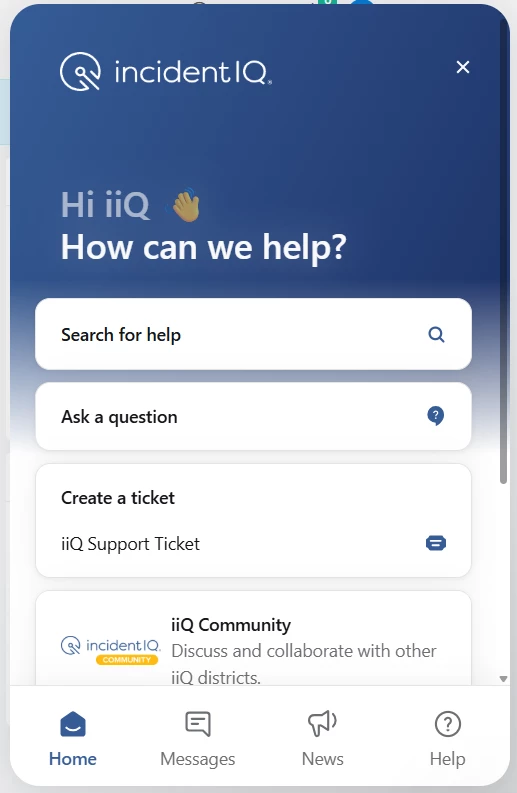
View the Knowledge Base Article for Your Current Page
- Copy the page title - In the upper-left corner of the page, copy the full page title.
- Open the iiQ Support Bot - Click the iiQ Support Bot located in the bottom-right corner of your screen.
- Search using the page title - In the Search for help bar, paste the copied page title.
- Select the first related result - Click the first option under related results.
You’ll now be able to read the knowledge base help article for the page you’re on-while continuing to navigate within iiQ, with the article remaining open for reference.
Not Seeing the iiQ Support Bot?
If the iiQ Support Bot does not appear in the bottom-right corner, please clear your browser cache and refresh the page.
How to Retrieve the Knowledge Base Article Link (URL)
If you need the direct link to a knowledge base article:
- Click the iiQ Support Bot.
- Select iiQ Community
- From the top menu, click on Knowledge Base, then select Knowledge Base again.
- Paste the page title into the purple Knowledge Base search bar.
- Open the article to copy and share the URL as needed.
