Question

Rapidscan with multiple bulk options?

  • December 12, 2025
  • 3 replies
  • 34 views

Forum|alt.badge.img+4

I’d like to rapidscan a bunch of chromebooks and mark them Active and move them to a new location at the same time.  But it doesn’t seem to be an option.  Looks like one bulk action at a time.  Is that correct?

3 replies

RSeward_iiQ
Forum|alt.badge.img+5
  • Employee
  • December 12, 2025

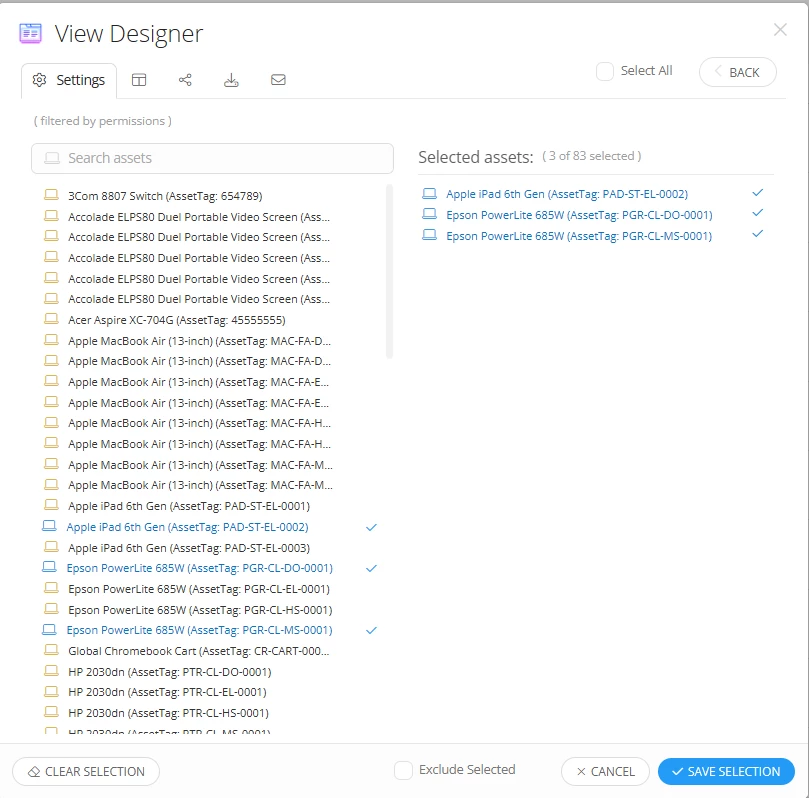
Hi ​@amac  thank you for your question! You could create an Asset View of the assets you want to change and you should be able to do those 2 bulk actions from that view. 


So the with the Asset View, just use the filter Asset and then you can scan in the devices that you want to add to that list. 


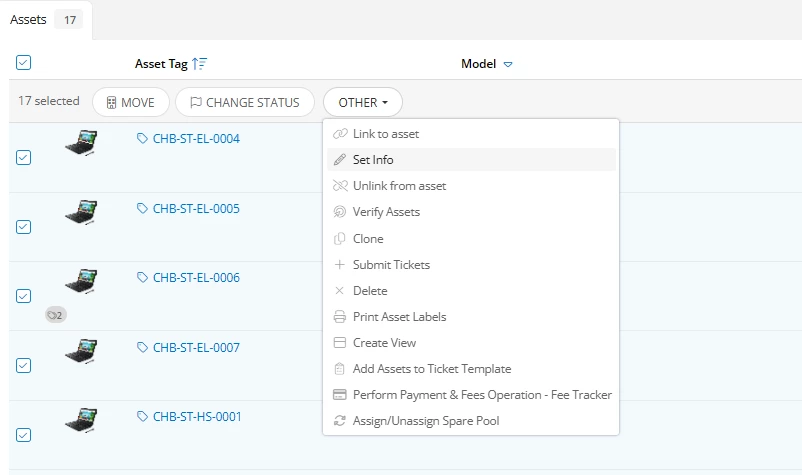
Once the list is built just make sure to select them all and then hit Other>Set Info.


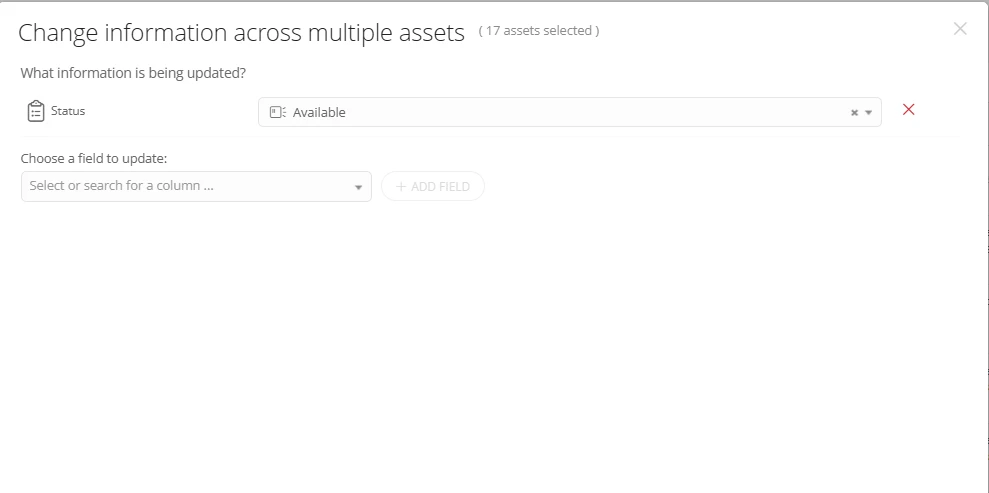
Then choose the Status, Add Field and select the status you want. 


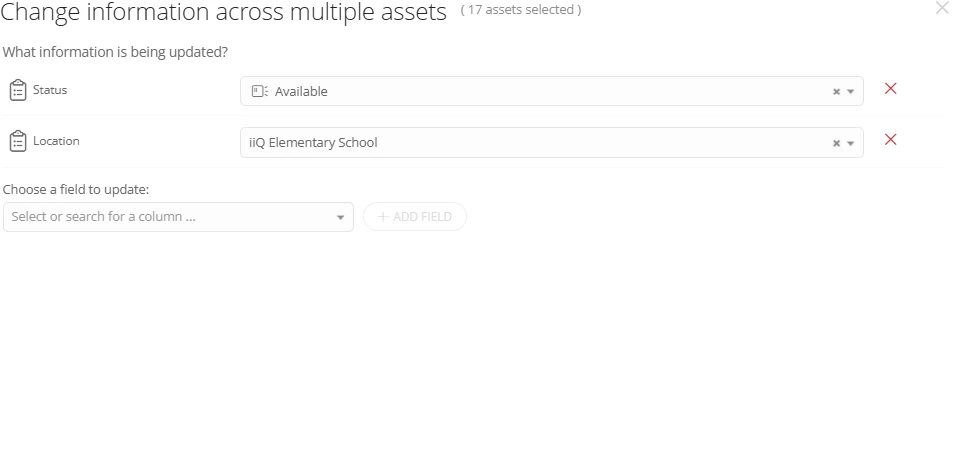
Then select the Location Field, Add Field and then set the location.

After hitting “Update Asset” the bulk changes should both be made. 


Let me know if this works for you!


EStapf_iiQ
Forum|alt.badge.img+14
  • Employee
  • December 12, 2025

Great idea ​@RSeward_iiQ !
@amac Rapid Scan can be tricky some times. You have to make sure that you are not in the Global Search (magnifying glass) before scanning. If you are it will only scan that one device and when you scan a different device it will pull up the second device individually. You can be anywhere else within the product for Rapid Scan to work to build your custom view with multiple devices. Let me know if that doesn’t make sense (it’s easy to talk about, but hard to type). 🤓
Here’s a thread that might help:

Hope this helps!


Forum|alt.badge.img+4
  • Author
  • Contributor
  • December 12, 2025

Hi ​@amac  thank you for your question! You could create an Asset View of the assets you want to change and you should be able to do those 2 bulk actions from that view. 


So the with the Asset View, just use the filter Asset and then you can scan in the devices that you want to add to that list. 


Once the list is built just make sure to select them all and then hit Other>Set Info.


Then choose the Status, Add Field and select the status you want. 


Then select the Location Field, Add Field and then set the location.

After hitting “Update Asset” the bulk changes should both be made. 


Let me know if this works for you!

I can see that as a work around but why not have the bulk options all listed with check boxes?  Thanks for the suggestion.