


Overview
Effective January 1, 2026, Skyward sunset access to the Incident IQ Skyward SIS app for all districts utilizing Skyward Qmlativ. To ensure uninterrupted service, SIS data must now be integrated into iiQ using One-Roster CSV data via the Skyward CSV app.
This guide outlines the best practices and step-by-step procedures for ensuring a seamless transition without data loss.
Best Practice Recommendation
Do not immediately uninstall the original Skyward app. We highly recommend temporarily running both the original Skyward app and the new Skyward CSV app simultaneously. This allows you to verify that the One-Roster CSV data matching your active SIS records is perfectly accurate before fully cutting over.
Phase 1: Pre-Installation Configuration
Before installing the new integration, you must protect your current data mappings to prevent the new CSV sync from unintentionally overwriting existing data.
- Navigate to APPS > Manage > Data Mapping.
- Check your User Field Mappings.
- If any mappings are currently being updated by Skyward, set your existing Skyward app as the Preferred App.
Note: This safeguard ensures your data remains intact during the initial syncs of the new Skyward CSV file.
Phase 2: Installation and Configuration
Step 1: Install the Skyward CSV App
Navigate to the Incident IQ Apps left-hand navigation menu to find and install the app.
Please follow the instructions below to install and configure the app.
- Install Instructions: Installing OneRoster CSV SIS Integration
- Configuration Instructions: Configuring Settings for CSV SIS Integration
Step 2: Verify Your Data
Once the installation and initial sync are complete, validate the incoming data.
- Open the profiles of a handful of sample users.
- You will now see two widgets on their profile: one for Skyward CSV and one for the legacy Skyward (API) app.
- Cross-reference the data between the two widgets. Specifically, verify that the user's status, grade, and location are accurately populated in the new One-Roster CSV widget.
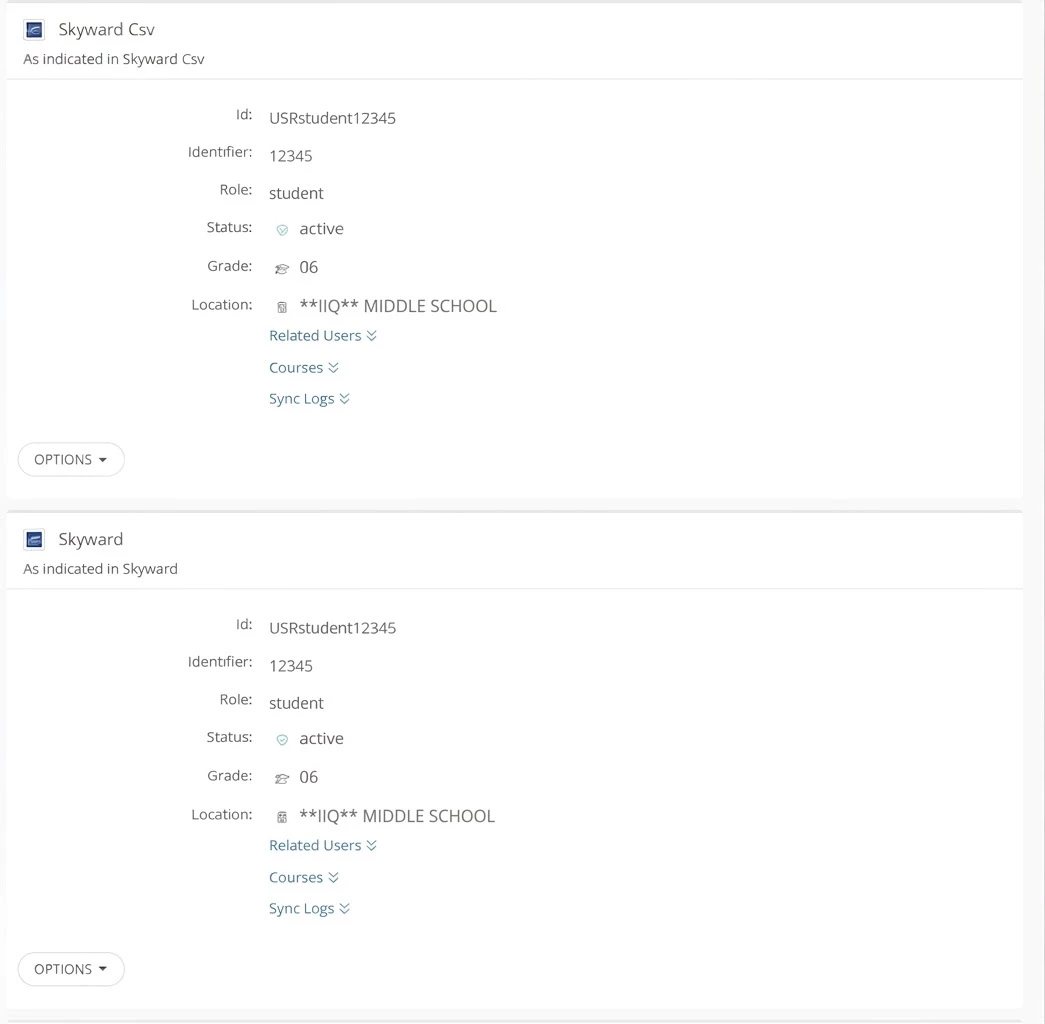
Phase 3: Finalizing the Transition
Once you are completely satisfied that the Skyward CSV data is syncing accurately, you can finalize the transition.
- Uninstall the original legacy Skyward app from your iiQ environment.
- Navigate back to APPS > Manage > Data Mapping.
- Update the Preferred App setting to the new Skyward CSV app so it can serve as your primary data source moving forward.
Troubleshooting
Issue: Active users are showing a status of “tobedeleted.”
If a user was previously unenrolled or removed from the SIS at any point in the past, their log might incorrectly flag their current status as “tobedeleted” even if they are currently active.
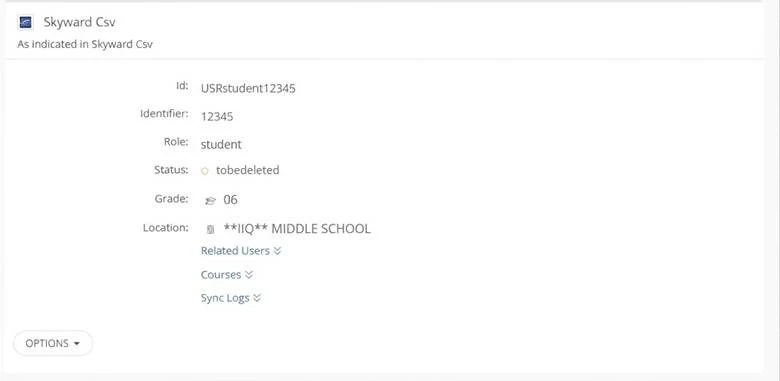
Solution:
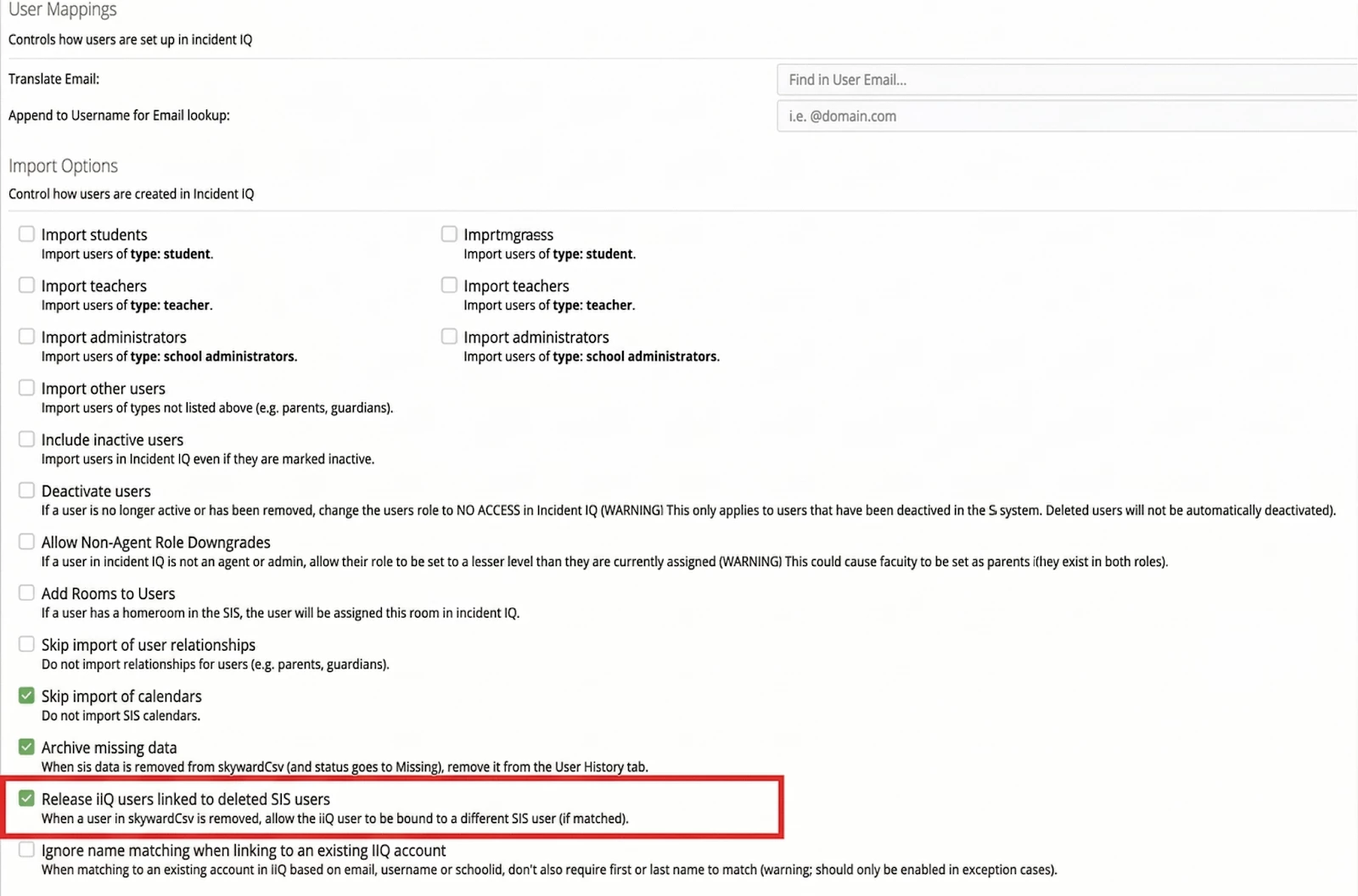
- Open the Skyward CSV app.
- Navigate to App Settings and scroll to the bottom.
- Select the option: “Release iiQ Users linked to deleted SIS users.”
- Initiate a new manual sync.
This will clear the backend flag and correctly restore their status to active.
If you run into additional issues please contact your Customer Success Manager or iiQ Support at (866) 899-9169 or email support at support@incidentiq.com.
